How do you set up one AI assistant your whole team can use?
A shared project, a few skills, the right connectors, one named owner.
Same question, three answers
Everyone set up their own AI, so every desk answers differently.
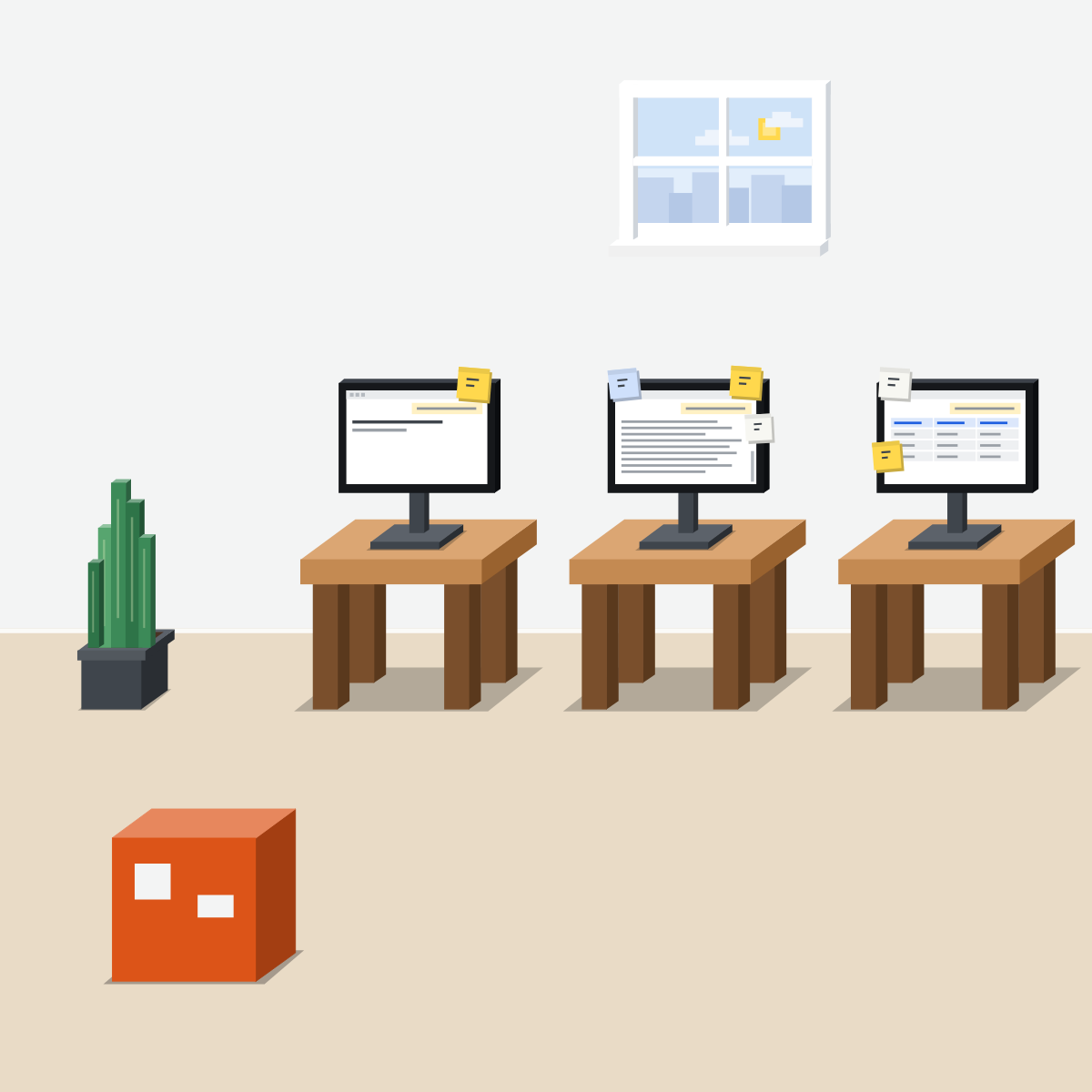
One shared desk, four parts
Set up once, for everyone:
- A shared project
- Three to five skills
- Only the connectors needed
- An admin, and one owner
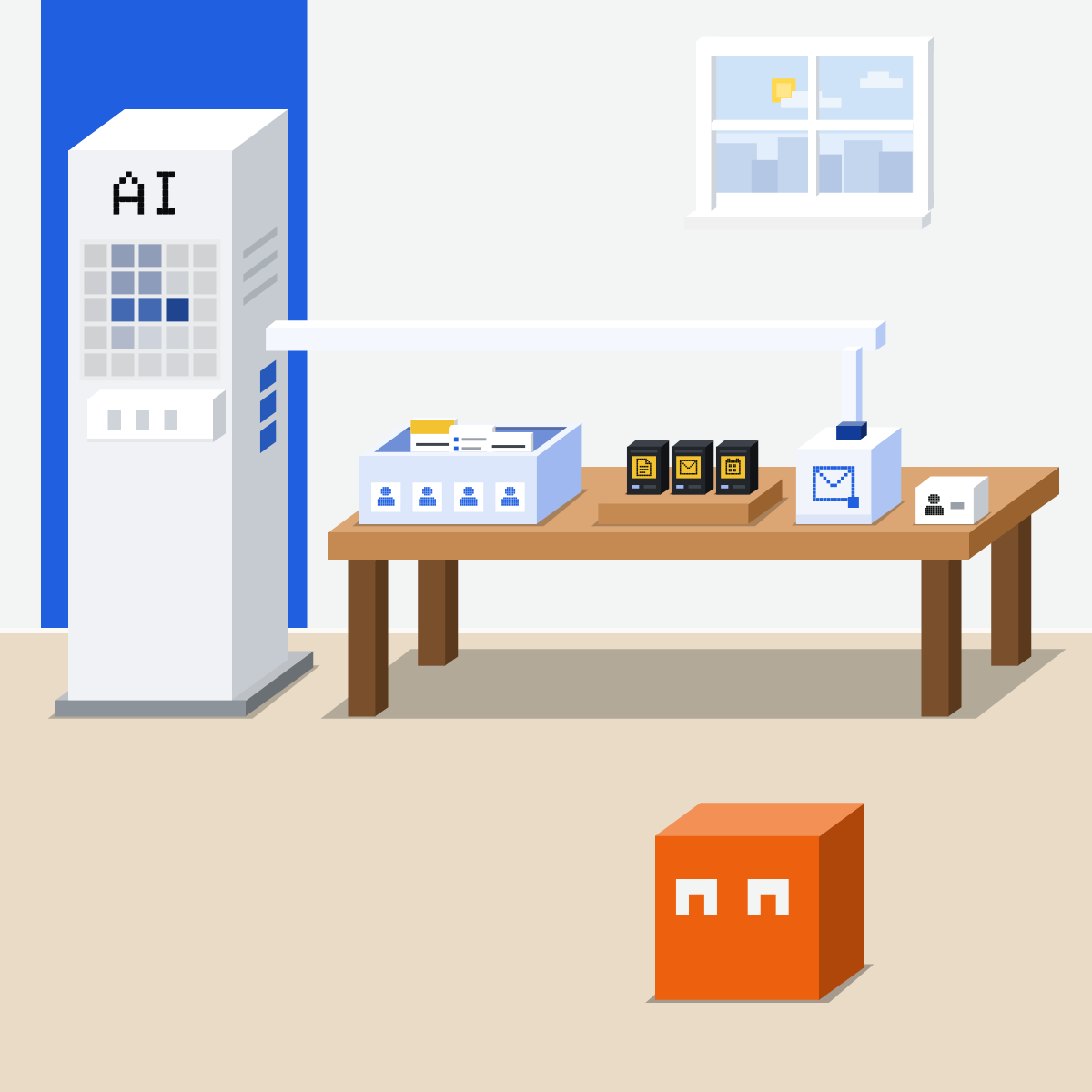
One project, the right files
Add the current template, the rules and one good example. Share it with the team.
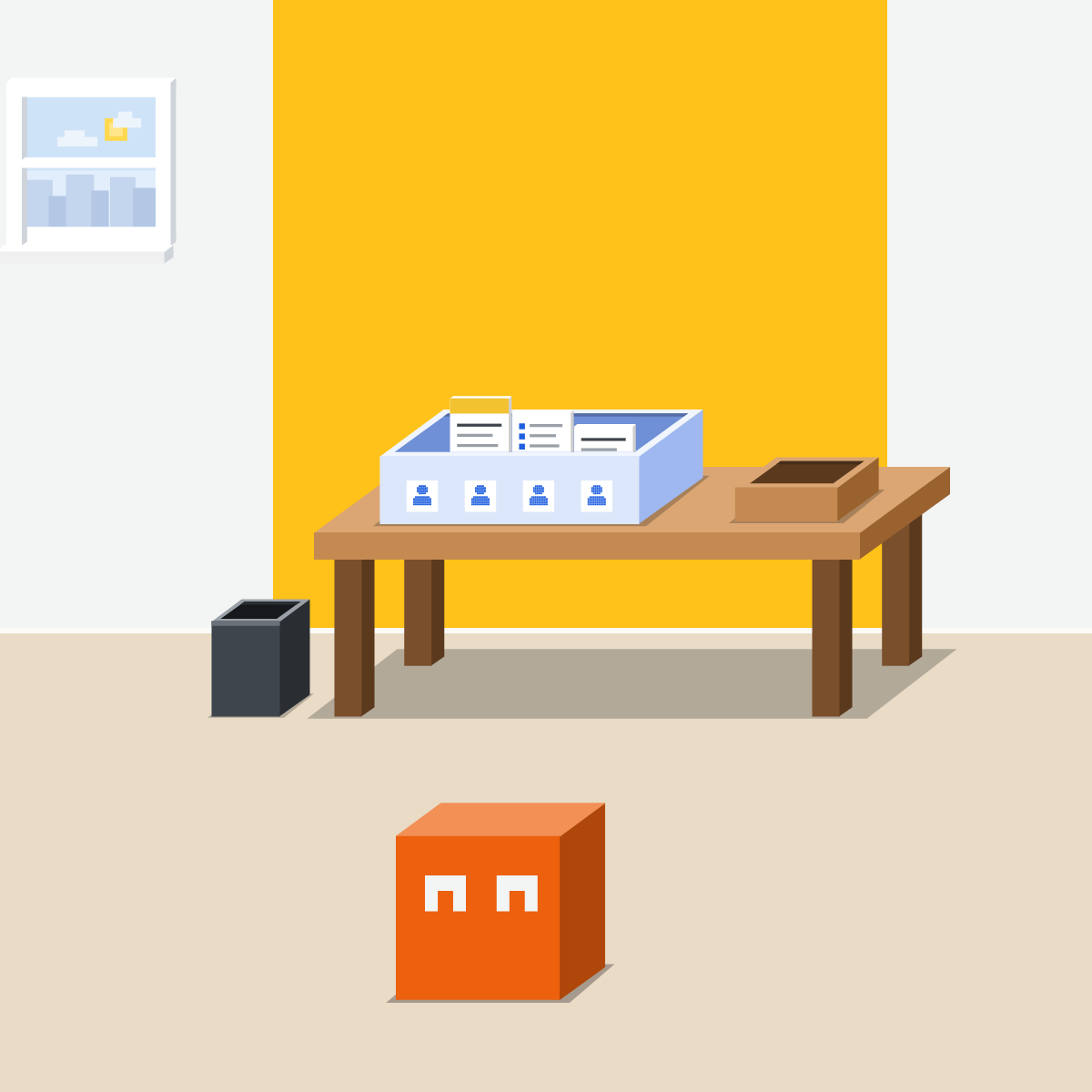
A few skills, written once
Turn the jobs you all repeat into three to five skills. Same steps for everyone.
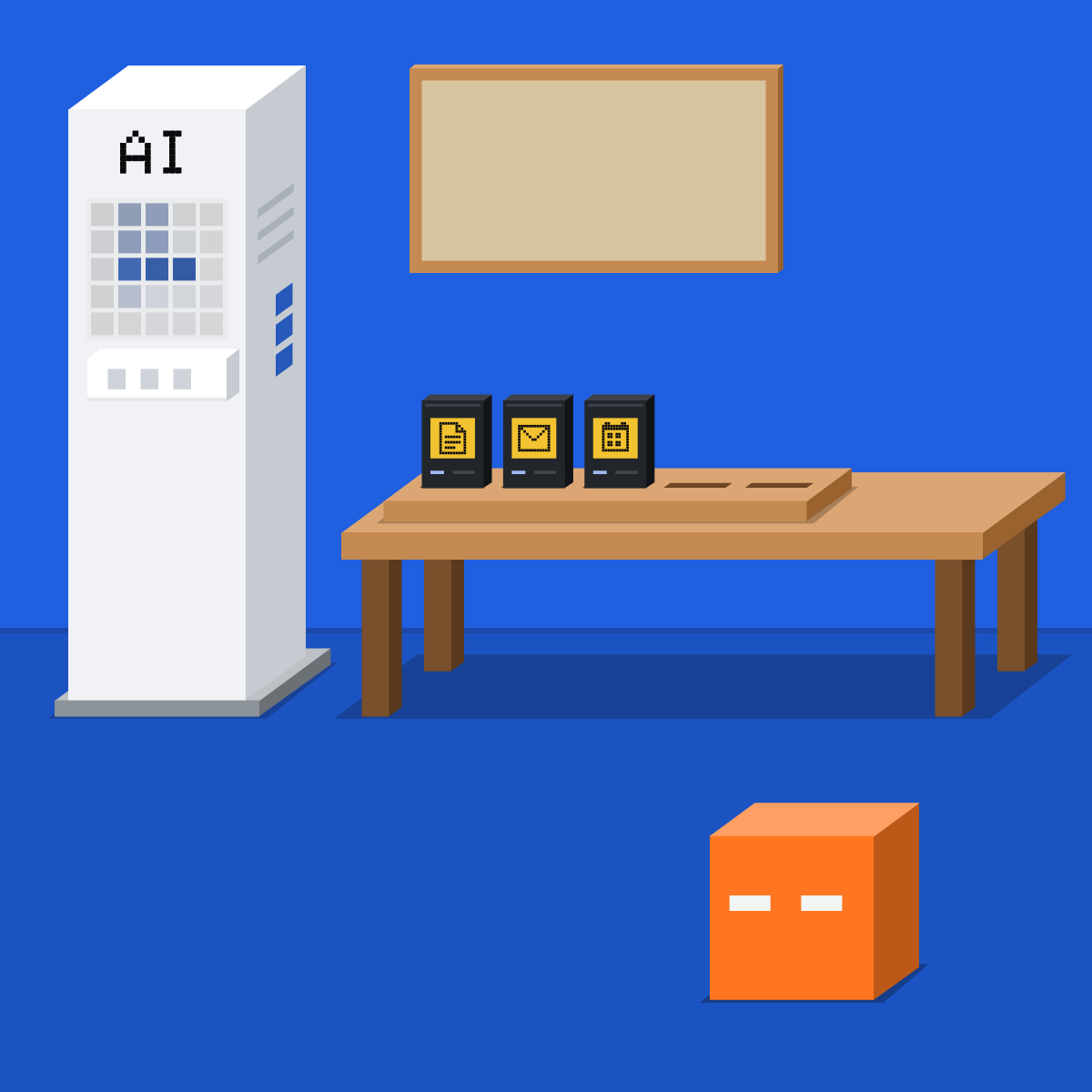
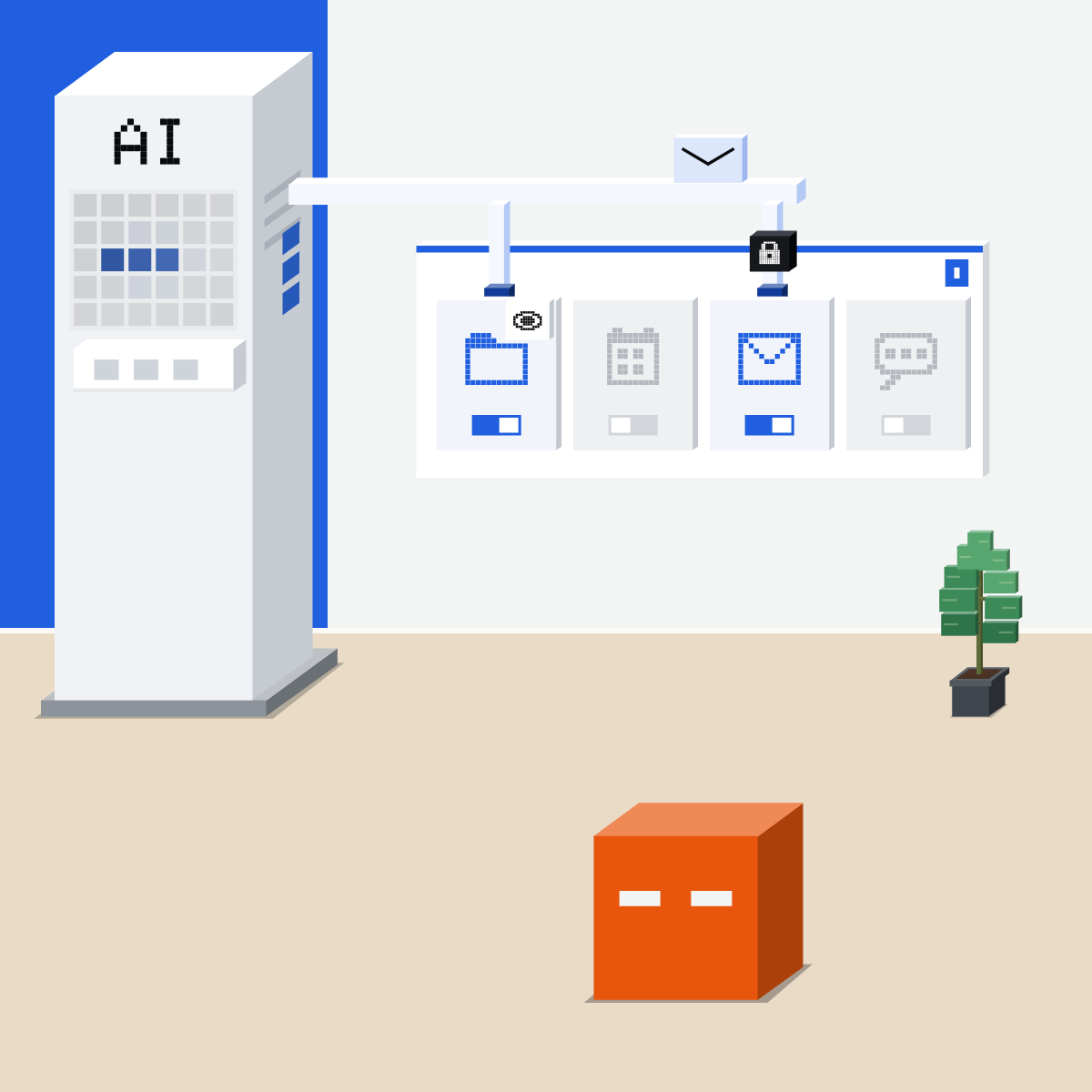
Only the connectors it needs
Your admin adds them. Read-only where you can; changes ask first.
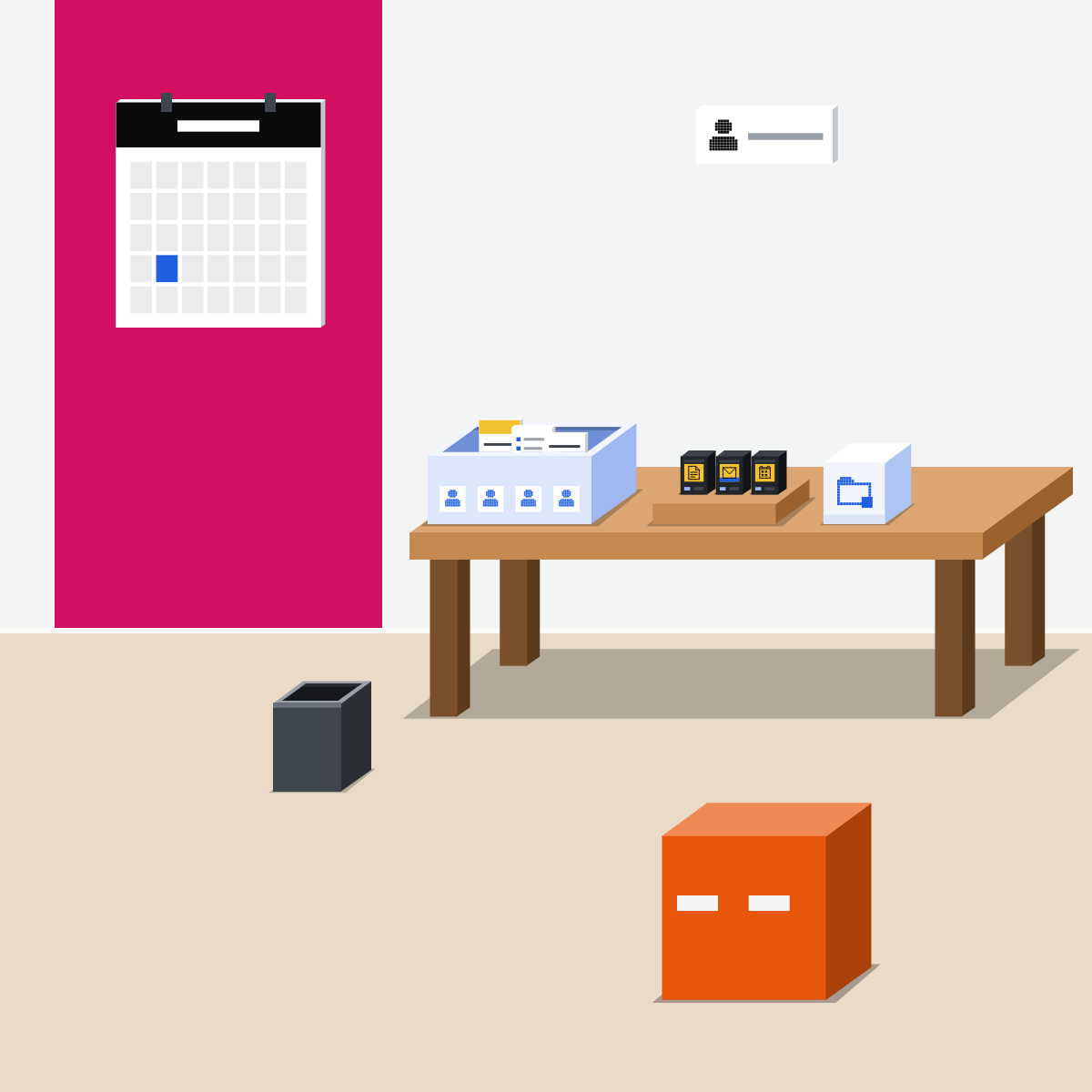
One owner, a monthly look
One named person keeps it current: newest files, fixed skills, unused apps out.
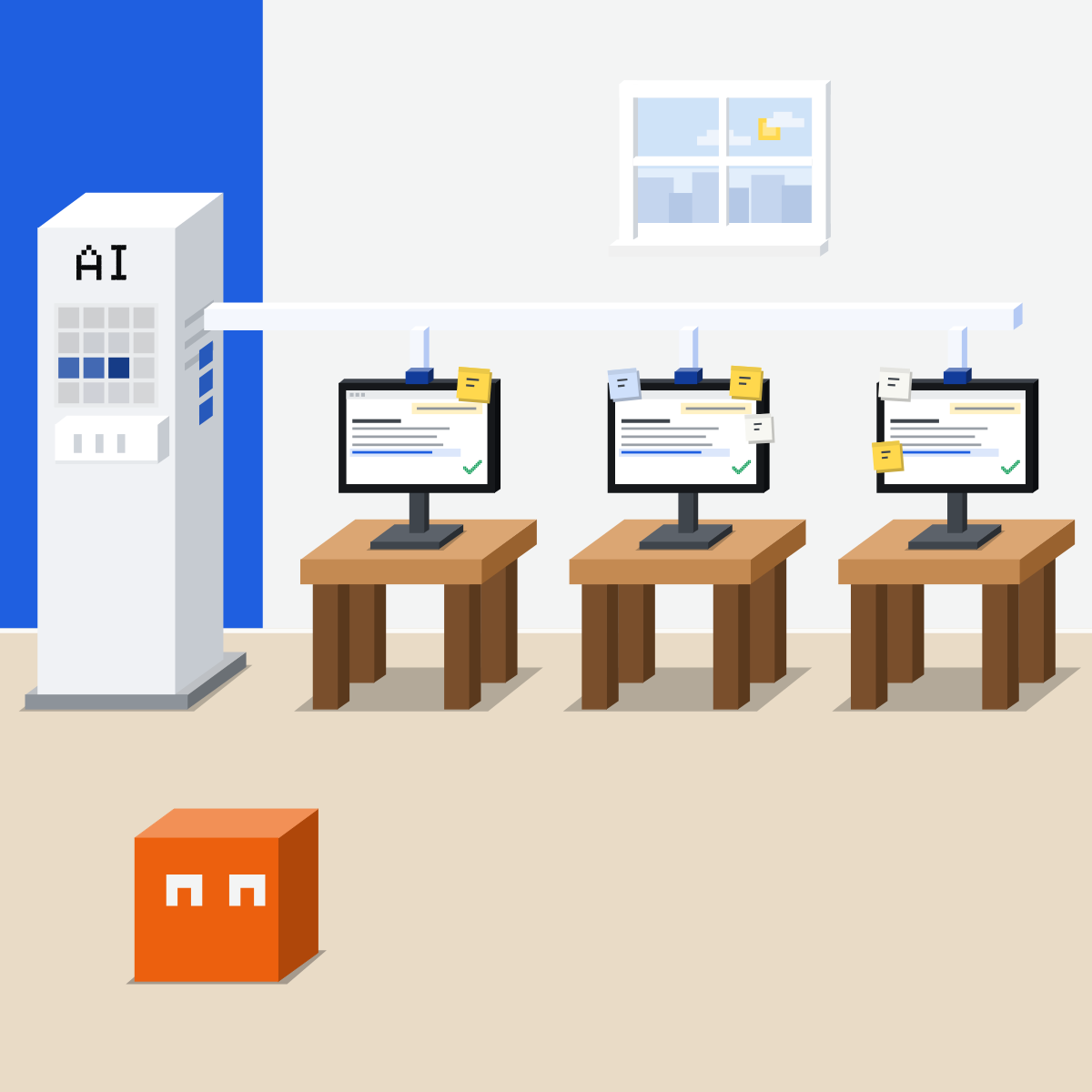
Same question. Same answer.
Fix the shared set-up once; every desk gets the fix.
Plan your team's set-up
Job names only, no client names.
- List five jobs your team repeats.3 min
- Fill them in. Paste into Claude, ChatGPT or Gemini.3 min
- Check: three to five skills, few apps, changes asking first.2 min
- Add an owner and a monthly date.2 min
The planning prompt
Help me plan one shared AI set-up for my team. Jobs we repeat each week: [job 1], [job 2], [job 3], [job 4], [job 5]. For each job, say: should it be a skill; which files our shared project needs; which apps it must read; what it must change. List what to ask our admin. Use only what I wrote.
Good looks likeA one-page plan to hand your admin.
In your assistant · as of Oct 2026 · Claude, ChatGPT, GeminiSet it up for the team
Admin steps need an owner or admin role. Missing or locked? Ask your IT team.
- CheckYour work account
- CheckAn admin sets it up
- CheckOne named owner
Work data on the work account only. A shared project shows its files to everyone in it: leave confidential files out.
 Claude
Team and Enterprise. A shared project, plus skills and connectors for your organization
Share the project with Can view or Can edit, or make it available to everyone in the organization.
Remove anything confidential first.
Owners only. Upload or create a skill: it's on for everyone, and each person can turn it off.
An Owner adds a connector for everyone. Each person then connects their own account.
An Owner sets this per tool for everyone in Customize > Connectors; members can't override it. Keep write tools on Needs approval.
Skills need Skills and Cloud code execution and file creation turned on, on the Policy tab. Members can share a skill with colleagues; shared skills are view-only.
 ChatGPT
Business and Enterprise. A shared project, plus skills and apps for your workspace
Share the project with people or workspace groups, or invite the whole workspace by link (chat access).
Up to 40 files and 100 collaborators.
Share a skill with people, groups or the whole workspace, if your admin allows it.
The admin turns apps on for the workspace, and can allow an app's read actions without its write actions.
Shared projects always use project-only memory. On Enterprise, admins choose who may share, publish or install skills under Permissions & roles.
 Gemini
Google Workspace. A shared notebook, skills as they arrive, and the apps your admin allows
Share a notebook in Gemini Notebook with Viewer or Editor access.
Rolling out to work accounts, expected by mid-November; Google says sharing them follows in the coming weeks.
Your Workspace admin turns connected apps on or off. Type @ and the app's name to use one.
Google says there are no admin controls for skills in the Gemini app. Your admin decides whether notebooks can be shared outside the organization.
Quick check · three questionsDid it stick?
1The weekly update comes out differently for each person. Where does the fix go?
The answer: A One shared how-to is one place to fix, and everyone's next update changes with it.2Your team assistant drafts replies to customers. Which connector set-up fits?
The answer: B Only what the work needs, and changes wait for a person's yes.3Three months in, the shared project still holds last year's template. What was missing?
The answer: C A set-up nobody owns drifts out of date. One person and a monthly look keep it current.
Your team works in Slack?Side note
Plugins for everyoneSide note
Keep the library smallSide note
Sources, checked 18 Oct 2026Source
Product details as of Oct 2026, each checked on the vendor's own page on 18 Oct 2026. Recheck by 18 Nov 2026. The examples in the pictures are made up for this lesson.
- Anthropic, Provision and manage skills for your organization (Team and Enterprise; Organization settings > Plugins & skills; Add; on for everyone, members can turn one off but not delete it; the Policy tab; sharing with colleagues, view-only)
- Anthropic, Manage plugins for your organization (Installed by default, Required, Available to install; members cannot edit them; Enterprise group overrides)
- Anthropic, What are projects (Can view or Can edit; available to everyone in the organization)
- Anthropic, Use connectors to extend Claude's capabilities (an Owner adds a connector in Organization settings > Connectors; Owners set each tool to Always allow, Needs approval or Blocked for everyone, and members cannot override it)
- Anthropic, Get started with connectors (an Owner adds a connector, members connect their own account; Tool permissions in Customize > Connectors)
- Anthropic, Connectors directory (Organization settings > Connectors; Request on Team plans)
- Anthropic, Connectors, skills, and plugins (a plugin packages skills and connectors as one install)
- Anthropic, Work with Claude Tag (Team and Enterprise; public beta; set up once by an Owner; per workspace or channel)
- Anthropic, Skills overview (it reads skills' names and descriptions to choose one)
- Anthropic, Claude release notes (nothing newer that changes this lesson; latest entry 7 Oct 2026)
- OpenAI, Projects in ChatGPT (workspace groups and a workspace link with chat access; 40 files; 100 collaborators; project-only memory; owners control sharing)
- OpenAI, Skills in ChatGPT (Business, Enterprise, Healthcare, Edu; Plugins > Skills > ••• > Share; Permissions & roles for Enterprise and Edu admins)
- OpenAI, Admin controls, security, and compliance for plugins and apps (Admin Console > Plugins; apps on by default in Business; read or write actions per app)
- Google, Create a notebook in Gemini Notebook (Share; Viewer or Editor)
- Google Workspace Updates, An update on the launch of skills in the Gemini app and Workspace (13 Oct 2026; mid-November; sharing in the coming weeks; no admin controls in the Gemini app)
- Google, Create and manage skills for Gemini Apps (Customize > Skills)
- Google, Use apps connected to Gemini with a work or school account (only the Workspace administrator manages them; @)
- Google Workspace Admin Help, Manage Gemini Notebook sharing settings (sharing outside the organization)
Free kitThe Team PackBring this to your teamAI implementation · Get in touchBack to level 6, Advanced and by role
One shared set-up. One named owner.
Next lesson · 15 minWhich jobs should your team hand to AI first?